As an Amazon Associate I earn from qualifying purchases. This post may contain affiliate links at no extra cost to you.
A Dell all-in-one desktop compresses the entire computer into the monitor itself, eliminating the tower, the cable spaghetti behind your desk, and the dedicated surface a traditional setup demands. That convenience comes at a cost: once a component fails or ages out, you cannot simply swap a part and keep going. For a buyer in 2026 choosing among the many configurations Dell offers, the stakes are therefore higher than picking a regular desktop. You are committing to a specific screen size, panel type, and internal layout for years, which means the right processor tier, enough RAM, and a storage configuration that will not leave you gasping in eighteen months matter more here than they would in a tower you can quietly upgrade.
We compared these eight machines on published specifications, listed prices, and recurring themes from owner feedback to separate genuinely useful configurations from those where cost-cutting on a single component undermines the whole package. A few clear patterns emerged: models pairing a Core 7 150U with 16GB of DDR5 sit in a sweet spot for most home and small-office workloads, while Core 3 and Core 5 variants save money but limit headroom. Touchscreens and Copilot+ branding add value for specific use cases but inflate the sticker price on panels that do not always match the quality of their non-touch siblings.
As an Amazon Associate we earn from qualifying purchases at no extra cost to you. Product prices and availability are accurate as of the date shown and are subject to change.




Quick Picks
| Product | Best for | Price |
|---|---|---|
| Dell 27″ Core 7 150U, 16GB | Everyday home computing | $1,384.99 |
| Dell 27″ Core 5 120U | Budget buyers wanting a large screen | $1,020 |
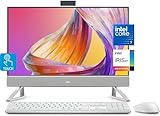
| Dell 24″ Touch Core 7 150U, 16GB | Small-space touch users | $1,149.99 |
| Dell 23.8″ Core 3 100U | Entry-level home or reception use | $990.58 |
| Dell 27″ Core 7 150U, 32GB | Multitaskers and creative hobbyists | $1,849.99 |
| Dell 27″ Core 7 150U, 16GB, 1TB SSD | Large local storage on a budget | $1,579 |
| Dell 23.8″ Touch Ultra 7, Copilot+ | AI-ready compact workstation | $1,399.99 |
| Dell Optiplex 7450 (Renewed) | Ultra-low budget with Windows 11 Pro | $308 |
How We Picked
Three criteria drove our ranking. First, processor-to-workload fit: Dell sells these machines at enough price spread that a Core 3 100U in an all-in-one form factor becomes a bottleneck the moment you open more than a handful of browser tabs alongside a spreadsheet, while the Core 7 150U handles that same workload with visible headroom. Second, RAM and storage configuration longevity: 16GB is the realistic floor for any all-in-one you intend to keep past two years, and 512GB SSD fills fast on a Windows 11 machine with a few programs installed. Third, price-to-spec ratio within the category: we weighed each model against its nearest competitor on screen size, panel quality, and internal capacity rather than judging it against a tower desktop, because all-in-one premiums are structural and unavoidable.
The 8 Best Dell All In One in 2026
Dell 27″ Core 7 150U, 16GB
The balanced default choice. A 27-inch FHD panel with Intel’s Core 7 150U and 16GB of RAM covers web browsing, office suites, light photo editing, and video calls without noticeable strain. Owners consistently praise the clean desk footprint and the quiet operation under moderate load.
- Pros: 27-inch screen suits split-window multitasking; Core 7 150U handles everyday workloads comfortably
- Con: FHD resolution on 27 inches means moderate pixel density; text looks slightly soft up close compared to QHD panels
Skip this if your work involves detailed layout, large spreadsheets, or any content where 1080p on a 27-inch canvas feels cramped. The price sits mid-range, so the value case weakens if a smaller 24-inch model meets your space needs.
Dell 27″ Core 5 120U
The cheapest entry point to Dell’s 27-inch all-in-one line. The Core 5 120U is a capable chip for single-task or light multitask work, but it lacks the additional efficiency cores and thread count of the Core 7 150U, which shows in sustained multi-application loads.
- Pros: Largest screen in the budget tier; Windows 11 Home keeps the software stack familiar
- Con: Noticeably fewer processing threads than the Core 7 150U models, so performance drops off faster under concurrent workloads
Skip this if you regularly run a browser with many tabs alongside productivity software or light media. The savings over the Core 7 150U configuration are modest enough that the performance gap outweighs them for most buyers.
Dell 24″ Touch Core 7 150U, 16GB
Compact footprint, touchscreen convenience, and a Core 7 150U with 16GB RAM and a 512GB SSD. This configuration suits a home office with limited desk depth or a shared family computer where tapping feels more intuitive than a mouse for some users. Wi-Fi 6 and Bluetooth 5.3 are included.
- Pros: Touchscreen adds a usability layer for mixed-age households; Windows 11 Pro is a plus for small-business buyers
- Con: 24-inch FHD is a noticeable step down in workspace from the 27-inch models, and the price premium over the non-touch 24-inch equivalent buys you the digitizer rather than a better panel
Skip this if you never use touch input or if screen real estate matters more than desk space to you. The 27-inch Core 7 150U non-touch models give you more pixels for a similar outlay.
Dell 23.8″ Core 3 100U
The absolute floor of Dell’s consumer all-in-one lineup. The Core 3 100U handles basic computing—email, a word processor, a couple of browser tabs—but the moment workload complexity rises, you will feel the ceiling. Owners report the unit fine for a kitchen or reception counter role.
- Pros: Lowest new-unit price in the group; compact enough for tight spaces where a tower cannot go
- Con: Core 3 100U is the weakest processor here; multitasking headroom is minimal and the machine will feel slow sooner than any Core 5 or Core 7 option
Skip this if the machine will serve as your primary work computer. The $30 difference over the Core 5 120U model buys a measurably longer useful life, and the renewed Optiplex option below delivers more capability for even less money.
Dell 27″ Core 7 150U, 32GB
The power-user configuration of the 27-inch line. Double the RAM of the base model lets you keep dozens of tabs, a virtual machine, or a video timeline open simultaneously. The panel and processor match the $1,384.99 sibling exactly, so you are paying purely for memory headroom.
- Pros: 32GB RAM future-proofs against Windows and browser memory creep; same Core 7 150U performance as the cheaper sibling
- Con: Nearly $500 above the 16GB configuration for the same screen and processor, a premium that only pays off if you genuinely need that memory
Skip this unless your workflow demands 32GB. Most buyers will be fully served by the 16GB version at a significantly lower cost, and the RAM premium here is steeper than upgrading a tower after purchase would have been.
Dell 27″ Core 7 150U, 16GB, 1TB SSD
Identical to the top pick in processor and RAM but doubles the storage to 1TB. For anyone archiving photos, keeping a game library, or storing project files locally without relying on cloud sync, the larger SSD removes an ongoing annoyance.
- Pros: 1TB SSD eliminates storage anxiety for media-heavy households; Core 7 150U handles all daily workloads well
- Con: The jump from the 512GB configuration costs nearly $200 more than you would pay for a comparable external SSD, making the internal upgrade a questionable value proposition
Skip this if you already keep files on a network drive or cloud storage. The convenience of extra internal space does not justify the price delta over the 512GB model for most use cases.
Dell 23.8″ Touch Ultra 7, Copilot+
The most technically current option, pairing Intel’s Ultra 7 Series 3 processor with Copilot+ features, 16GB DDR5 RAM, a 1TB PCIe SSD, Wi-Fi 6E, and Windows 11 Pro. This is the only model here with on-device AI acceleration, which unlocks the newest Windows features as Microsoft rolls them out.
- Pros: Newest processor architecture and NPU for AI workloads; Wi-Fi 6E provides the best wireless throughput of the group
- Con: 23.8-inch FHD panel is the weakest visual experience relative to price; Copilot+ features are still early and may not justify the current premium for all buyers
Skip this if you want maximum screen area or if AI features are not relevant to your workflow. The Core 7 150U 27-inch models deliver more usable pixels for a similar or lower price.
Dell Optiplex 7450 (Renewed)
A genuinely different proposition. This is a renewed business-class machine with a Core i7-7700, 8GB RAM, and a 256GB SSD running Windows 11 Pro. The processor is two generations older than the others, but the build quality of the Optiplex line, its port selection including HDMI and DisplayPort, and the $308 price make it the value outlier of the group.
- Pros: Business-grade chassis and port variety; lowest price by a wide margin while still running Windows 11 Pro
- Con: Only 8GB RAM and a 256GB SSD mean the machine will hit memory limits faster than any other option here, and the older i7-7700 is less efficient under sustained load than modern Core 7 chips
Skip this if you need a machine for four-plus years without upgrades. For a secondary workstation, a student laptop replacement, or a small-office terminal, it is difficult to beat at this price.
Buying Guide
Screen Size and Resolution: The Fixed Commitment
Unlike a tower setup where you can swap monitors cheaply, an all-in-one locks your display choice permanently. A 27-inch FHD panel offers ample workspace but moderate sharpness; stepping up to QHD on the same diagonal would roughly double the pixel count, but Dell’s consumer all-in-one line does not offer QHD in these configurations. If you primarily browse, email, and run office software, FHD at 27 inches is perfectly serviceable. If you edit photos, write code, or work with dense spreadsheets, the lack of higher resolution on this product line is a real limitation no amount of processing power compensates for.
Processor Tier: Where Performance Ceilings Live
Dell segments its all-in-one processors across Core 3, Core 5, Core 7, and Ultra 7 tiers. The Core 3 100U is a two-to-three-core processor fine for single-app use but insufficient once you open a browser alongside other software. The Core 5 120U adds modest headroom. The Core 7 150U with ten cores is where the line becomes genuinely capable for multitasking and light creative work. The Ultra 7 Series 3 sits above all of them with dedicated NPU silicon for AI tasks. Choose the lowest tier your daily workflow actually occupies, because upgrading a processor in an all-in-one is impossible.
RAM and Storage: The Longevity Question
16GB is the practical minimum in 2026 if you want a machine that feels responsive through its third or fourth year of ownership. Models shipping with 8GB will handle current workloads acceptably but will strain as browsers and operating systems continue their long memory climb. On storage, 512GB is the baseline; 1TB removes the recurring pressure of managing disk space but costs disproportionately inside the all-in-one chassis versus adding a cheap external drive. Consider whether you truly need internal capacity or whether a USB SSD on the back of the unit solves the problem for less money.
Our Verdict
Top pick: The Dell 27″ Core 7 150U with 16GB at $1,384.99 represents the best overall balance of screen size, processing headroom, and price in this lineup. Budget pick: The Dell Optiplex 7450 renewed at $308 is unmatched value for anyone whose workload is genuinely light and who values business-class build quality and port flexibility over raw speed. Alternative winner: The Dell 23.8″ Touch Ultra 7 Copilot+ is the right call if you specifically want on-device AI acceleration and the newest wireless standard, accepting that you pay a panel-quality tradeoff for those features.
FAQ
Can you upgrade RAM or storage in a Dell All-in-One?
Most Dell consumer all-in-one desktops allow access to RAM slots and the M.2 storage bay via a rear or bottom panel, so you can add memory or swap the SSD after purchase. Business Optiplex models tend to offer more straightforward serviceability, while some consumer lines use soldered or partially obscured components.
Is FHD resolution enough for a 27-inch all-in-one in 2026?
For general productivity, web browsing, and video consumption, 1080p on 27 inches is acceptable though not sharp. Content creators, developers, and spreadsheet-heavy users will notice the limitation and may prefer a smaller FHD panel or wait for a QHD option in Dell’s lineup.
Do Dell All-in-One desktops come with a keyboard and mouse?
Several models in this list include a wireless keyboard and mouse in the box, notably the 24-inch touch and 23.8-inch Ultra 7 configurations. Others may bundle a wired set or none at all, so check the specific product listing before assuming peripherals are included.
Are renewed Dell all-in-ones worth buying?
A renewed Optiplex model like the 7450 delivers business-grade hardware at a fraction of the consumer price, though you accept an older processor, limited RAM, and shorter remaining lifespan. For a secondary machine or a fixed-light workload, the value is hard to ignore at $308.